


You know that feeling when you’re creating a birthday card or baby announcement, and no matter where you put the text, it just looks… off? Like it’s covering up the good parts or sitting there awkwardly? That’s where curved text comes in. It helps your words become part of the design – flowing around your photos, creating circular announcements, or adding that extra touch that makes your celebrations feel more special.
Here’s everything you need to know to use curved text:
What Is Curved Text and Why Use It?
Curved text is text that’s shaped into arcs and curves rather than traditional horizontal lines. When you bend text word by word, you’re creating designs where the text works with your photo layout instead of competing for attention.
Why use curved text? It helps create more balanced designs by following the shapes already in your photos. Instead of blocking important parts of your images, it can complement your layout and make everything feel more connected.
Here’s why curved text makes such a difference:
- Visual appeal: Makes your designs more interesting than standard straight text
- Perfect fit: Helps text follow the natural contours of your photos
- Professional polish: Adds that finished look without design experience
- Flexible design: Works for everything from baby announcements to birthday cards


How to Create Curved Text in PicCollage
Creating curved text is surprisingly simple once you try it! Our built-in tools make it easy to create curved text that flows naturally with your favorite photos.
Here’s how to add curved text to photo collages:
- Open your collage and tap the text icon to start adding your message
- Type your words and pick a font that matches your mood
- Tap the curve icon in your text editing options
- Move the dot on the adjustable bars for Curve and Spacing to bend your text
- Drag your text to the perfect spot in your design
- Adjust the size and color to complement your photos
You can also apply curves to existing text by tapping on any text element and selecting Curve from the text menu. For detailed step-by-step instructions, check out our Guide to Curved Text in the help center.

About PicCollage’s Curved Text Generator
PicCollage’s curved text generator gives you complete creative control without any complicated steps. Our curved text generator free tool lets you experiment with different curves until you find the one that works best for your design.
What makes our curved text generator special:
- Watch your text change as you adjust the curve
- Control how gentle or dramatic your bend looks
- Works beautifully with every font in our library
- No learning curve – just slide and create
Creative Design Ideas for Using Curved Text
Special Announcements
There’s nothing quite like announcing a new family member! Curved text helps you frame those precious first photos in ways that feel as special as the moment itself. Wrap “Hello World” around your newborn’s sleepy face, or curve your puppy’s name above their adorable portrait.
Sweet announcement ideas:
- Curve “Hello World” or baby’s name around their photo like an arc
- Use “It’s a new puppy” text that curves playfully above pet photos


Birthday Cards and Invitations
Birthday celebrations deserve text that feels as joyful as the person you’re honoring! Curve “Happy Birthday” around their smiling face, or create party invitations where the details flow naturally with your photos.
Birthday inspiration:
- Curve “Happy Birthday” in an arc around the birthday person’s photo
- Use curved text like “YOU’RE INVITED TO” that flows around invitation designs
- Add curved name text (like “Maggie” or “Olivia”) as a signature element on cards


Business Profile Photo
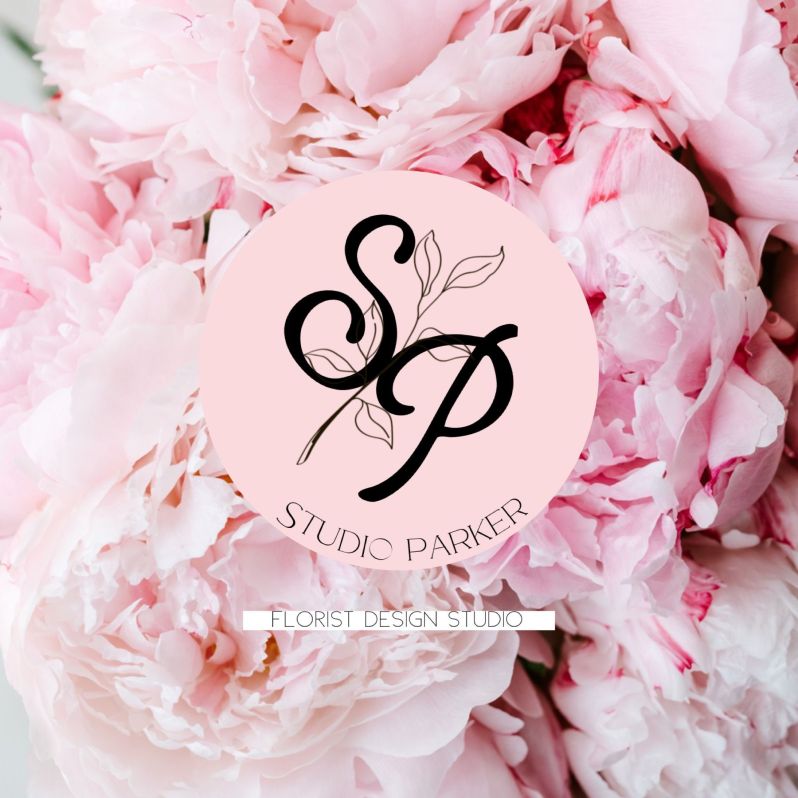
Creating professional branding doesn’t have to be complicated! Curved text helps you design polished logos and profile images that look custom-made. You can curve your business name around circular designs or create badge-style logos that stand out on social media.
Professional touches:
- Curve business names like “STUDIO PARKER” around circular logo designs
- Create complete circular text like “HARMONY HOME” that wraps around your brand symbol

Wedding Save the Dates
Love deserves text that flows beautifully with your wedding designs! Curved text adds elegance to save-the-dates and wedding stationery, creating romantic designs that capture your special day.
Romantic ideas:
- Curve romantic phrases like “LOVE FOREVER” around circular wedding designs
- Use “SAVE THE DATE” as curved text that frames your wedding details
- Add curved text at the bottom like “We can’t wait to celebrate with you”


Holiday and Special Occasion Cards
Every celebration feels more festive when your text flows with the joy of the moment! Curved text adds that special touch to holiday cards and milestone celebrations, making each occasion feel even more meaningful.
Holiday and celebration ideas:
- Curve “My Christmas Wish” as a flowing headline for holiday family photos
- Use “CONGRATULATIONS TO THE GRADUATE” in a complete circle around graduation photos


FAQs About Customizing Curved Text
- Can I control how much my text curves?
Absolutely! Our curved text feature includes a simple slider that lets you adjust from barely curved to dramatically bent. Start gentle and increase until it feels perfect for your design.
- Does curved text work with all the fonts?
Every font in PicCollage works with our curve feature. When you bend text word by word, script fonts often create especially beautiful curves, while bold fonts make powerful statements when bent.
- Can I make my text curve into a complete circle?
You can create circular text designs! For longer text, you’ll get a more complete circle naturally. For shorter text, try repeating the text with spaces in between to fill out the full circular path and create that complete circular effect.
- Can I use multiple curved text elements together?
Yes, mix curved headlines with straight body text, or layer multiple curved elements at different angles to create dynamic designs.
- What’s the best way to position curved text?
Look for natural flow in your photos. The curved text feature works best when it follows existing shapes – around photo slots, circular elements in your design, or the natural curves already present in your images.
Transform your designs by letting your words flow naturally with your photos instead of being confined to straight lines. With PicCollage’s curved text feature, you can create more dynamic designs that perfectly complement your special moments.
How will you use curved text in your next creation? We hope this guide and examples have inspired you to try something new with this powerful tool! Be sure to follow @piccollage on social media for tips, tricks, and first looks at new releases.

